computer problems

I moved this post to here as this may be amore suitable place for it.

I've got some pics of various things that I've been wanting to post. Problem is I've moved a lot of pics to an external hard drive as a temporary measure before buying a new computer. I was hoping to move all my files to the new hard drive then transfer them back to the new computer one day. When I try to attach a picture from the external hard drive, treebuzz gives me a message "this document contains no data". I've tried moving the pics that I want to post back to my computers own hard drive but they still won't work!

The pics I posted on this thread are newer and are not moved to the external hardrive yet so they worked fine.

Can anyone give me any advice on this, as I don't want my archive of highly entertaining and informative pics to be unavailable to the future success of treebuzz!!!!!
 
The filesystem I use has what's called "symbolic links". I can have a file at a certain place in the directory structure, and I can create another within the structure, or without it, which when the new file is accessed by a software program the original is actually used. The second "copy" isn't really a file at all, just a pointer to the first.

It works admirably well.

Windows has their (somewhat) version called (I think) "shortcuts". You may have inadvertently created shortcuts on the external drive to the original pics. So long as the original pics are still there in the original place it seems to me it should work okay. If, however, you've since removed the original pics to another place or nowhere at all you could be S.O.L. without backups.

Knowing no more about your particulars than I do, I suspect that could be the case for you at this time.

More details may result in better help.
 
I'll add this to Glen's comment.

The first thing I would check is see if you can actually view the pictures from the external drive directly on your computer. If you can that's a much different problem than if you can't. If you can't view the pictures look at the properties of one of them and post that information (right click to get a menu; properties is usually at the bottom). Also, shortcuts are usually shown with a curved arrow in the lower left corner.

Glen,

You forgot hard links! I have all three on my windows machine
wink.gif
.

Take care,

Cary
 
Hey Cary.

I didn't mention them because they don't work across devices :)

Thanks for completing my thoughts on the matter of the problem at hand. I guess I'd implied to check if the files on the external drive were actually working still. If they're merely shortcuts to the originals then it wouldn't be much of a backup, would it? I've seen it done, however.

While you're lurking about here, check out the side-leaner thread. Where did those guys from forustry forum get the equation (there's a referenced link to that site in the thread)? It don't seem right to me, but all I've come up with factors out the height of attachment and I haven't found the time to get back to it yet.

Thanks.
 
Thanks guys, I'll try and look into whats going on when I have time, but for now I kmow I can access the images from the external drive, and I know they are no longer on the hard drive as I erased them once they were transfered. That was the whole point of getting the external so I could copy pics,video,music onto it, then put it all back onto a new computer later.

My "office files" (much smaller) are copied onto the external as back up but remain on the original also.

Moving so much data to the external drive freed up lots of space on the computer and helped speed things up a bit, but I have had problems, for example, windows XP gives you a dedicated "my music" folder, in which album art is displayed for each file and folders are automatically created for each artist, with subsequent albums by that artist going into that folder. This now doesn't happen and all the album art is lost. This is a pain cos I play music via wi fi through my tv and sound system downstairs and it used to to display the album art on the tv screen, which was nice, this no longer works. Not the end of the world the music still plays just as well.

I tried to copy the files back to the PC, but the album art was still lost, I guess the only way to get it back is copy my entire CD collection again on the new computer when I get it.
 
I spend very, very little time in Windows. Can't you copy the whole directory structure, including "My Pictures", "My Music", etc. to the external drive and keep all the ancillary files intact?
 
Rupe, I am guessing that the computer accesses the CDDB (Compact Disc Data Base, I think it stand for) on the internet in order to get the album art. I don't think that data is stored on the disc itself. There is probably a setting in whatever media player you are using that asks whether or not you want it to access the internet for this information. I'm pretty sure that itunes and Windows Media Player both have that setting option, as well as others.
 
Does Windows do that now, too? I'm only familiar with Linux doing it for the past several years.

If that's the case and the whole user's "home" directory structure was copied over (with the originals deleted afterward), then of course the information will be absent until the files are copied back into the new system. At that time all the data should be available once again without having to go through the process of reloading all the music CDs.

Good luck, Rupe. Let us know how it turns out.
 
[ QUOTE ]
Rupe, I am guessing that the computer accesses the CDDB (Compact Disc Data Base, I think it stand for) on the internet in order to get the album art. I don't think that data is stored on the disc itself. There is probably a setting in whatever media player you are using that asks whether or not you want it to access the internet for this information. I'm pretty sure that itunes and Windows Media Player both have that setting option, as well as others.

[/ QUOTE ]

Correct. The album art is only gained if you are on line when loading the cd's onto the hard drive. The information is then stored with each album in the provided "my music" file. Its only when I switch all the files to the external that this bit of information was lost. Sending it all back to the original hard drive doesn't work so I guess its proper lost!

I know I can get it back but I'm pretty sure I will have to reload all the albums again, which is only a days work so not the end of the world. If I want to load an album now and I set the destination file as the external hardrive it won't save the album art. Must be a combination of windows media player, CDDB and "my music" folder. If you notice the "my music" folder has a special icon. If you create a new folder and call it "my music" it won't do the same thing even if that new folder is on your compoters original hard drive.

Anyway music is not the main concern, its the photos I want to be able to post and/or e-mail. I still need to look into that.

Got to rush, my sisters getting married tomorrow so I've got to go and see if I own any shirts! And a suit...oh, and smart shoes...oh sh*t!!!
 
Thanks matt, a good time had by all. One sister married, four more to go!!

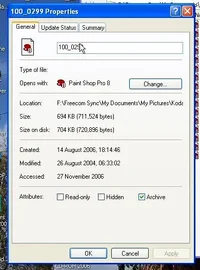
Back to this computer thing. I've had a look at the file paths for the photos on the external drive and all seems to be ok. The only difference I noticed is that when you click properties for a particular photo you get this.

63997-Image1.jpg


As you can see the file is marked as "archive" Other photos on the computers hard drive are not marked like this. I'm not sure what thye significance of this is.
 

Attachments

  • 63997-Image1.webp
    63997-Image1.webp
    31.1 KB · Views: 6
Well I'm confused now. I just tried re posting a pic that had failed before and it worked.

So I then tried another and it failed. I closed treebuzz, had cup of tea, re opened TB and tried it again and it worked!

Maybe I can only post one pic at a time from the external drive or maybe I have to have a cup of tea each time. Strange things these confusers (computers).

Both pics had been move from the external drive back to the original drive, and whilst this didn't work at first it now works if one pic is done at a time.

I'll close TB now, re open it and try a pic directly off the external drive.
 
There's no filename extension. It doesn't have to mean anything, really, but the convention is longstanding to assign an extension to the filename which pertains to the file type. Your "Type of file: " shows nothing. I would think you'd be showing something along the lines of "JPEG image data" for a .jpeg (or .jpg) extension (assuming it's such in this case).

The fact that Windows by default hides such very important and useful information is one of the reasons I dislike it.

Leon will help us get to the bottom of this.

Send me that file to glen at sanft dot com if you would, please.
 
[ QUOTE ]
There's no filename extension. It doesn't have to mean anything, really, but the convention is longstanding to assign an extension to the filename which pertains to the file type. Your "Type of file: " shows nothing. I would think you'd be showing something along the lines of "JPEG image data" for a .jpeg (or .jpg) extension (assuming it's such in this case).

The fact that Windows by default hides such very important and useful information is one of the reasons I dislike it.

Leon will help us get to the bottom of this.

Send me that file to glen at sanft dot com if you would, please.

[/ QUOTE ]

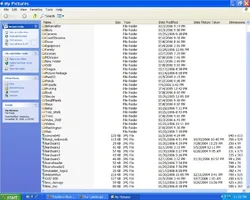
Windows doesn't hide it if you place your cursor over the thumnail or icon.

There are several viewing options and those options are the default. One of them in View is "list details". If that setting is used, the file types are not hidden.

See attached image.
 

Attachments

  • 64694-untitled.webp
    64694-untitled.webp
    83.2 KB · Views: 12
Yes, notice I'd said that the "default" way is to hide from the user the extension part of the filename. Even in your attachment the extensions are still hidden from you. If you changed "tree_doc.jpg" to "tree_doc.doc" (in name only) it would no longer be listed as a "JPG File" [sic] in that view, correct?

Gotta love the DOS convention of a three-character extension in what's supposed to be a modern OS. It's a JPEG file (acronym from Joint Picture Experts Group) by the way... :)

Rupe's "type of file" is " " so even though it's probably JPEG data the naming convention of Windows (handling a file based solely upon it's declared extension, whether right or wrong) is probably what prevents him from uploading the image here.

I've run into situations where people using IE to upload images to web forums or sending me them via web-based email have attached images declared as type "PJPEG" (or was it PJPG?). There is no such type of data! There are "progressive" JPEGs but they are JPEG data.
 

New threads New posts

Back
Top Bottom